 Phosphor
Handheld and console gaming
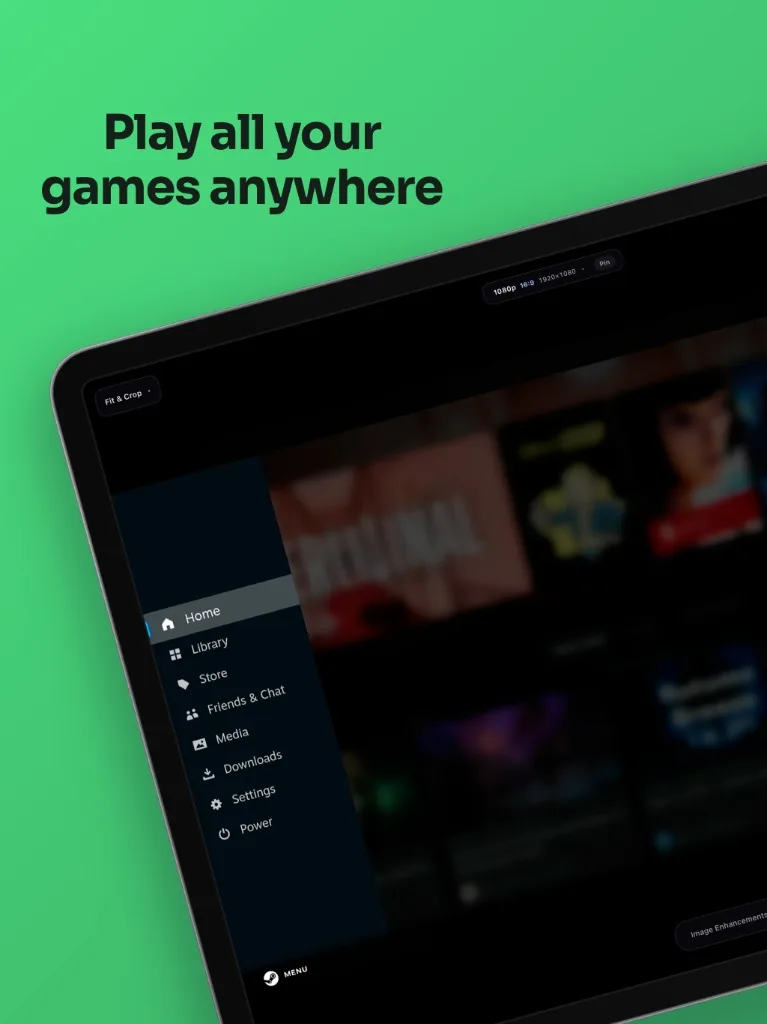
Connect your Nintendo Switch, Steam Deck, PlayStation, or Xbox. Phosphor Pro features automatic black-bar cropping via a luma-threshold GPU scan to fit the iPad screen.
Phosphor Monitor · iPad only · iPadOS 17+
Connect your Nintendo Switch, Steam Deck, Mac, or PC to your USB-C iPad using a standard UVC capture adapter. It relies on a direct hardware connection, meaning zero network latency and no wireless compression.
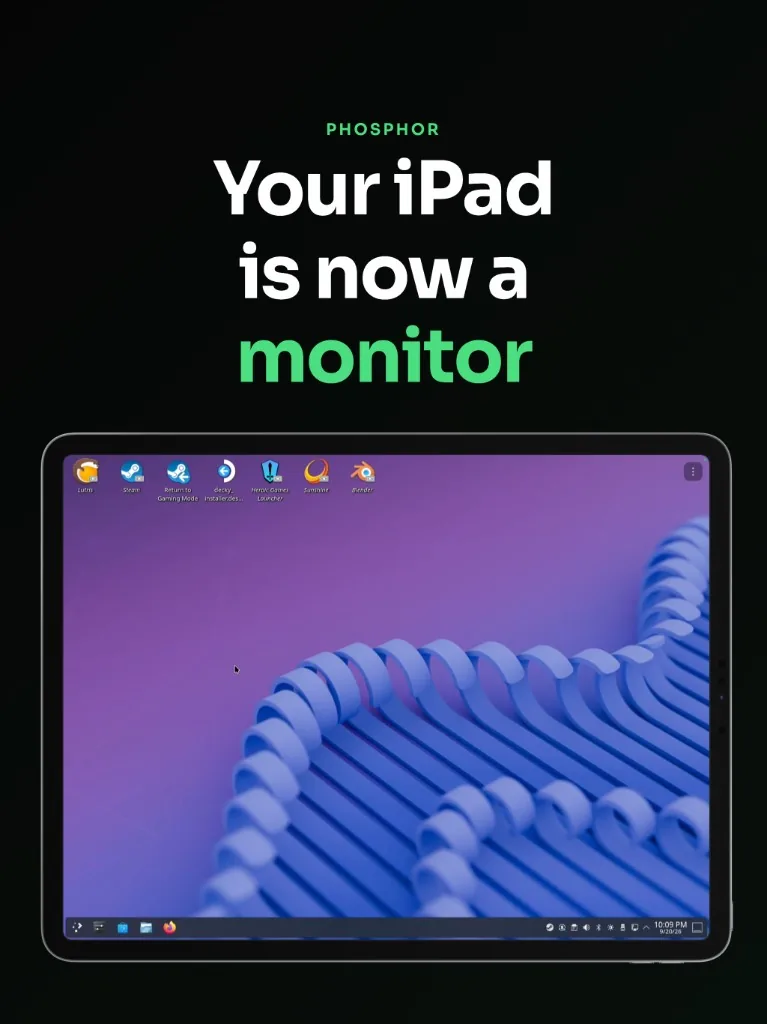
Connect your Nintendo Switch, Steam Deck, PlayStation, or Xbox. Phosphor Pro features automatic black-bar cropping via a luma-threshold GPU scan to fit the iPad screen.
Avoid wireless Sidecar or AirPlay mirroring. Use a physical HDMI link for coding and reference documents with uncompressed 1:1 pixel rendering.
Use your iPad as a field monitor with audio monitoring and mute. Phosphor Pro unlocks direct-to-disk 60fps recording and unadorned source frame snapshots.
Phosphor Monitor turns your USB-C iPad into a portable wired HDMI monitor. Plug in any standard UVC capture card and use your iPad as a Nintendo Switch screen, a Steam Deck portable display, or a wired MacBook second monitor.
This is a direct physical wired UVC tool. It explicitly avoids confusing claims about wireless AirPlay or Sidecar mirroring. You rely on a dedicated hardware video connection, meaning zero network dependence and no heavy compression.
Three connections. No account. No cloud relay.
Focused guides and companion utilities for your setup.
Control your Mac or Windows desktop with touch gestures and trackpad navigation from your iPad.
Download & learn more →A Sidecar alternative that stays sharp when conference Wi‑Fi does not.
Open the Mac guide →Use your iPad as a Switch monitor over HDMI — portable, full-screen, with game audio.
Open the Switch guide →A travel second screen for Deck, plus optional 60 fps clips to Photos.
Open the Steam Deck guide →Portable console gaming
Connect Switch, Steam Deck, PlayStation, or Xbox to your USB-C iPad using a standard UVC capture adapter. It provides a reliable wired connection without relying on local network bandwidth.
Switch on iPad Steam Deck display
Latency: How snappy it feels depends mostly on your capture hardware. Look for dongles sold for low latency; Phosphor only adds the picture tools you turn on.
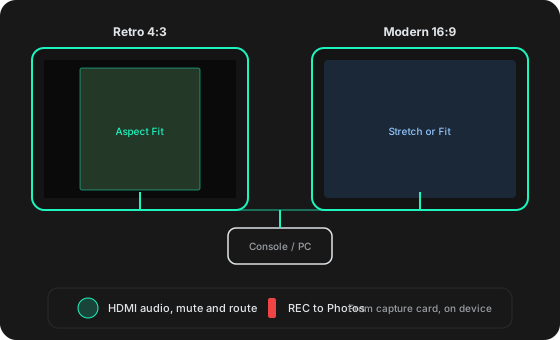
Framing modes
Wired second display
Send HDMI or USB-C video from your Mac or PC into Phosphor. It operates over a physical cable, avoiding the latency and stutter of Sidecar and AirPlay.
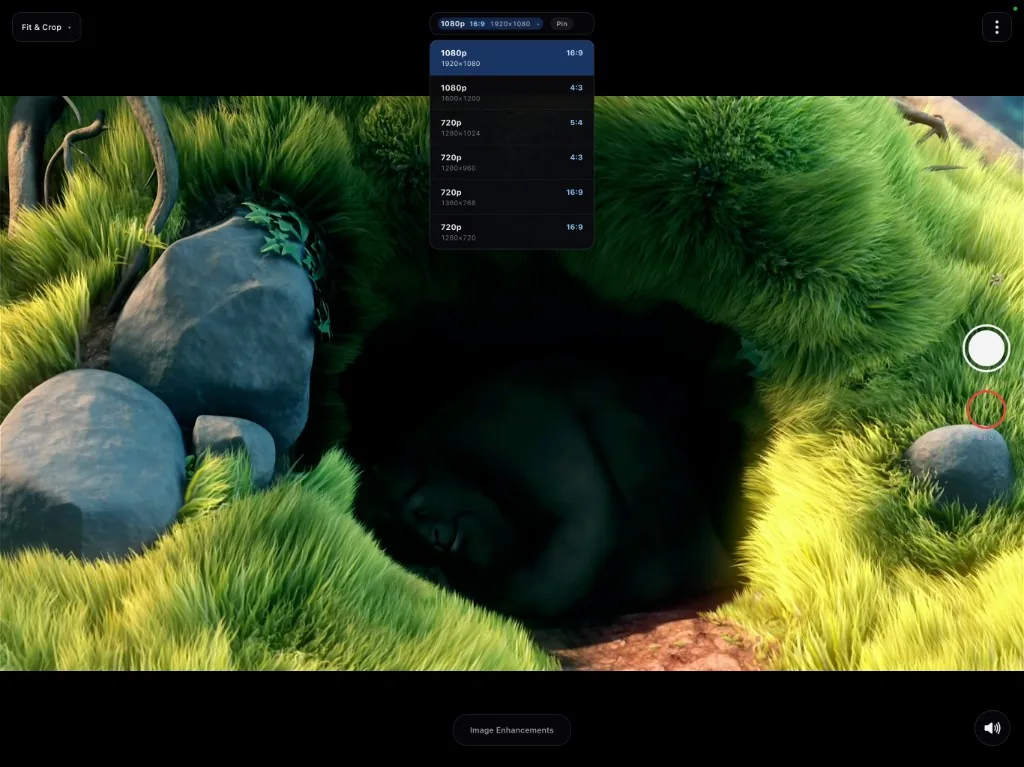
Signal path
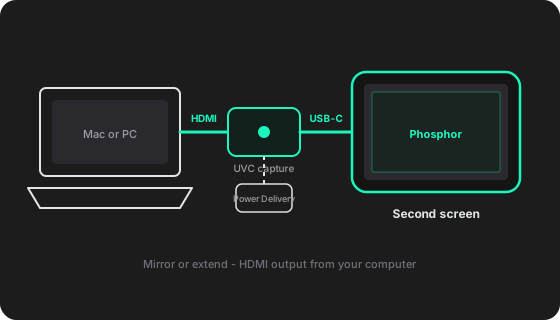
A dedicated hardware video pipe for Switch, Steam Deck, Mac, and PC. No Wi‑Fi dropouts, no subscription, and picture and touch tools that stay out of the way until you need them.
Major Pro Feature · Public Beta
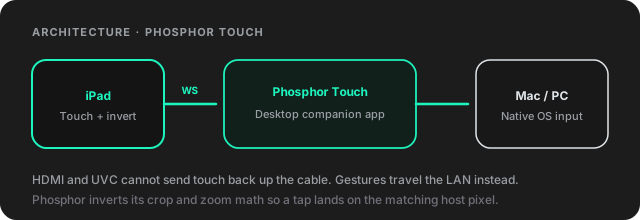
Transform your iPad into a touch screen or huge precision trackpad. Phosphor Touch bridges your iPad gestures to macOS and Windows via an instant local input stream — allowing direct clicking, window dragging, drawing, and multi-finger navigation.
Phosphor Touch is currently in public beta (v0.1.1). Pre-built companion apps are available for macOS and Windows.
Phosphor Touch architecture
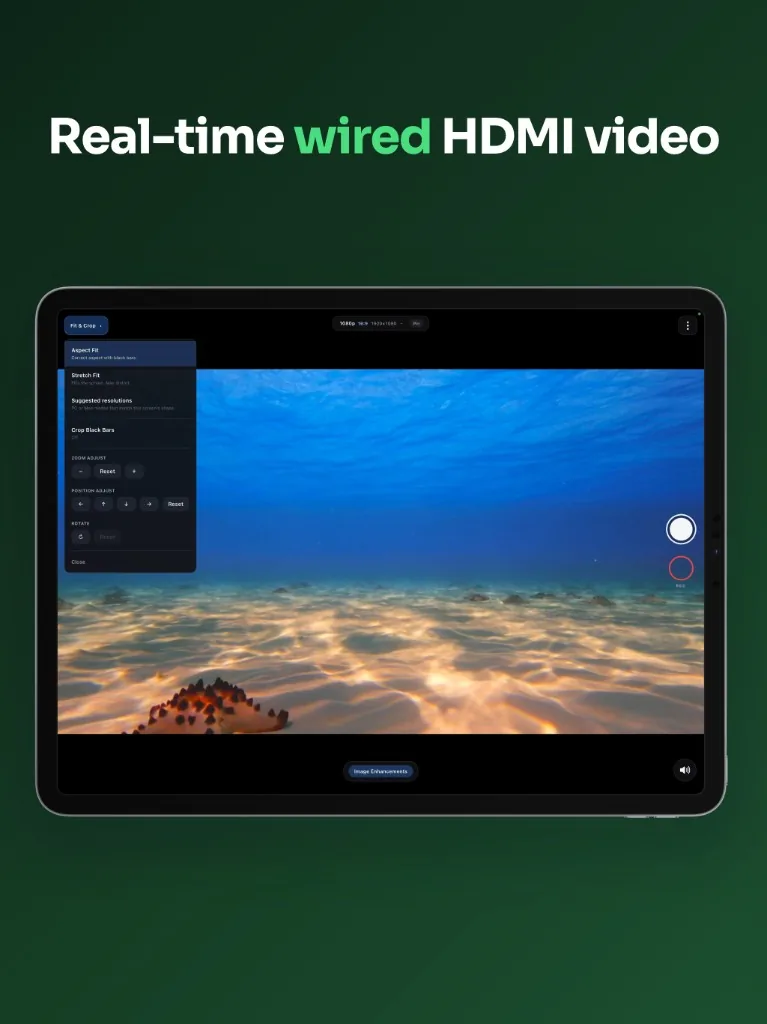
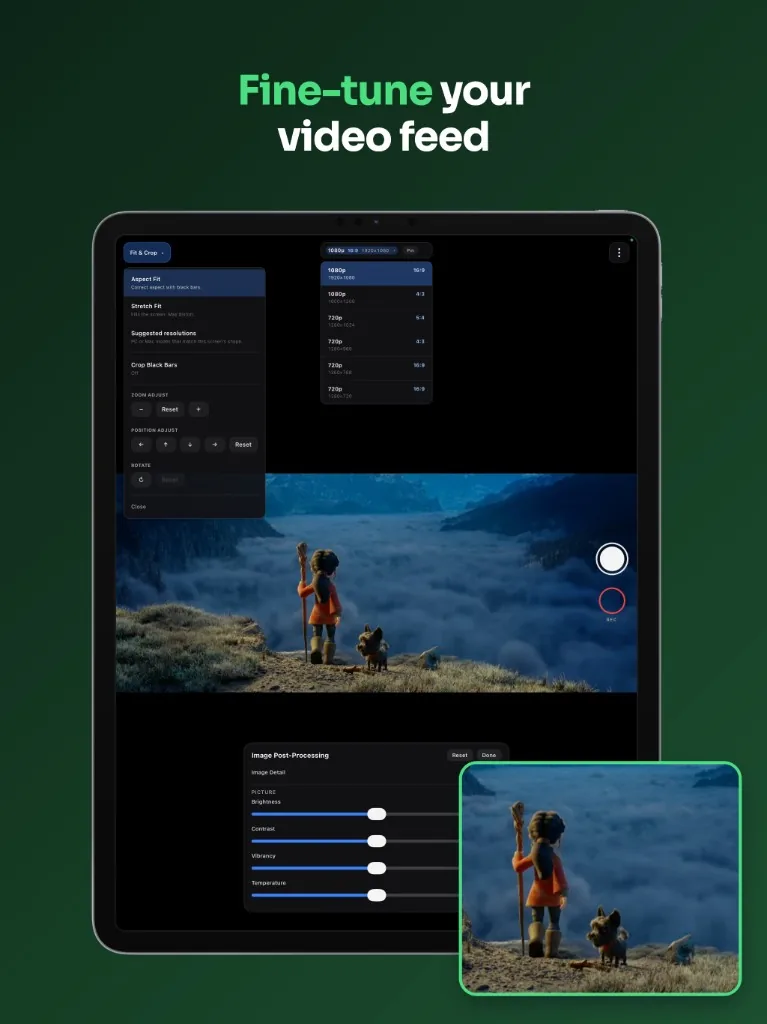
Aspect fit, stretch, pinch zoom, and suggested OS resolutions are free. Phosphor Pro unlocks automatic black-bar cropping via a GPU luma-threshold scan, alongside freeform pan and rotate.
Adjust brightness, contrast, vibrancy, temperature, and sharpness directly on the live feed.
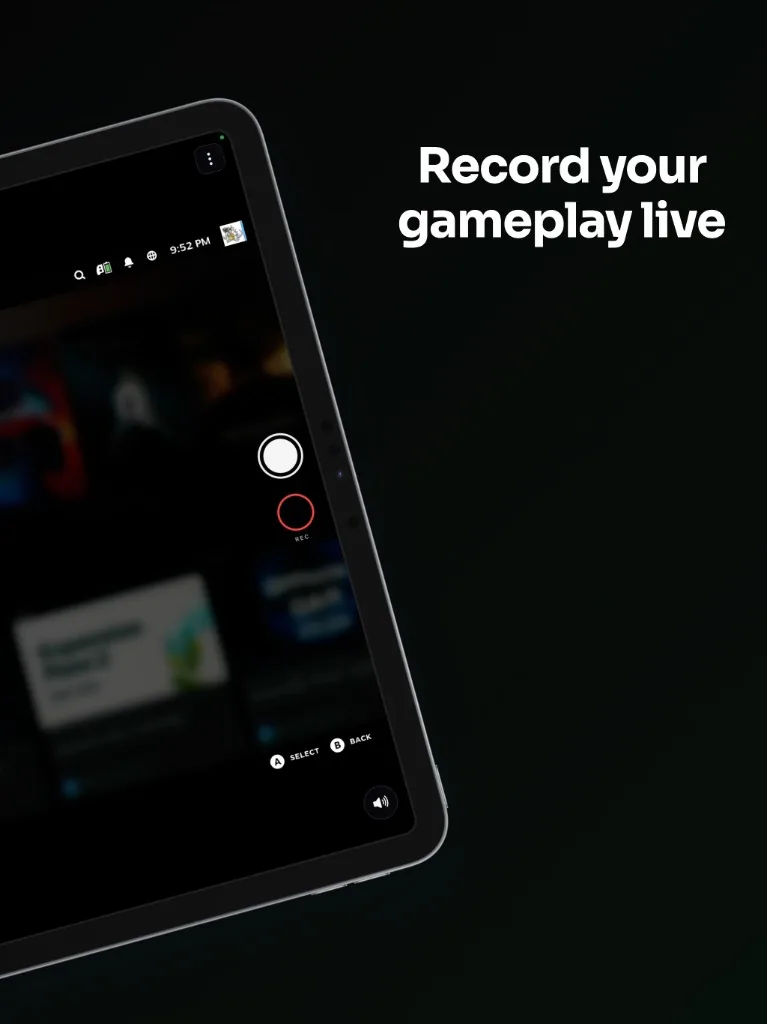
Snapshot the live HDMI feed to Photos anytime. Phosphor Pro unlocks direct-to-disk 60fps MP4 recording for gameplay highlights and bug reports.
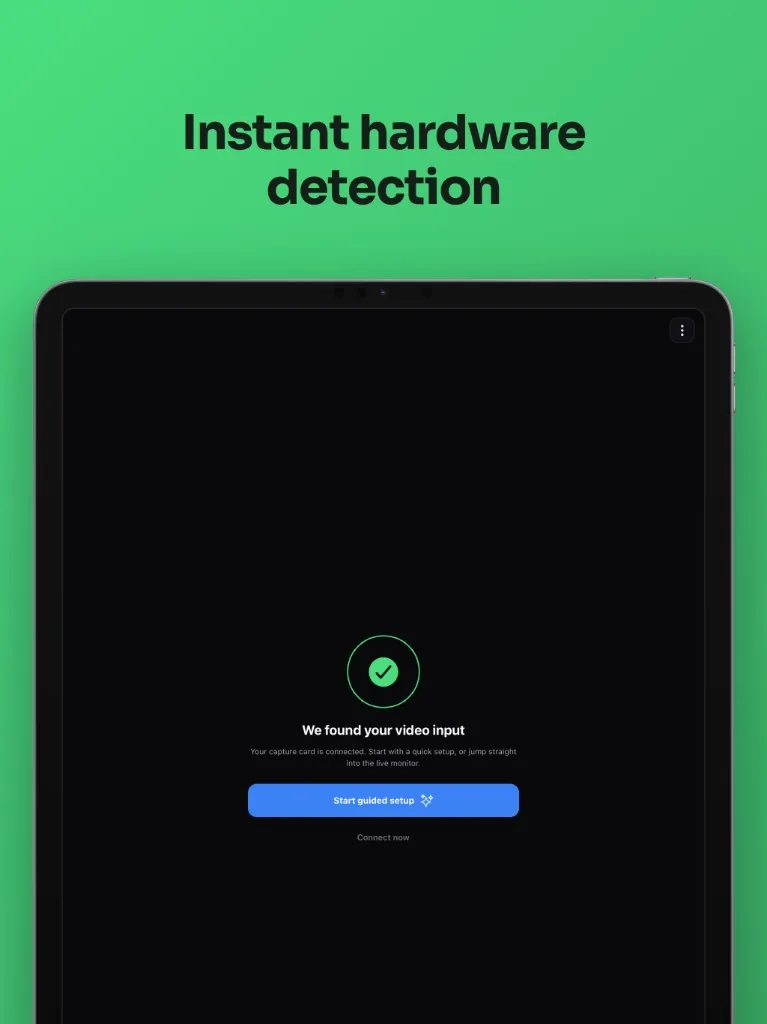
Plug in a standard UVC capture stick and Phosphor finds your video input, then guided setup or jump straight to the live monitor.
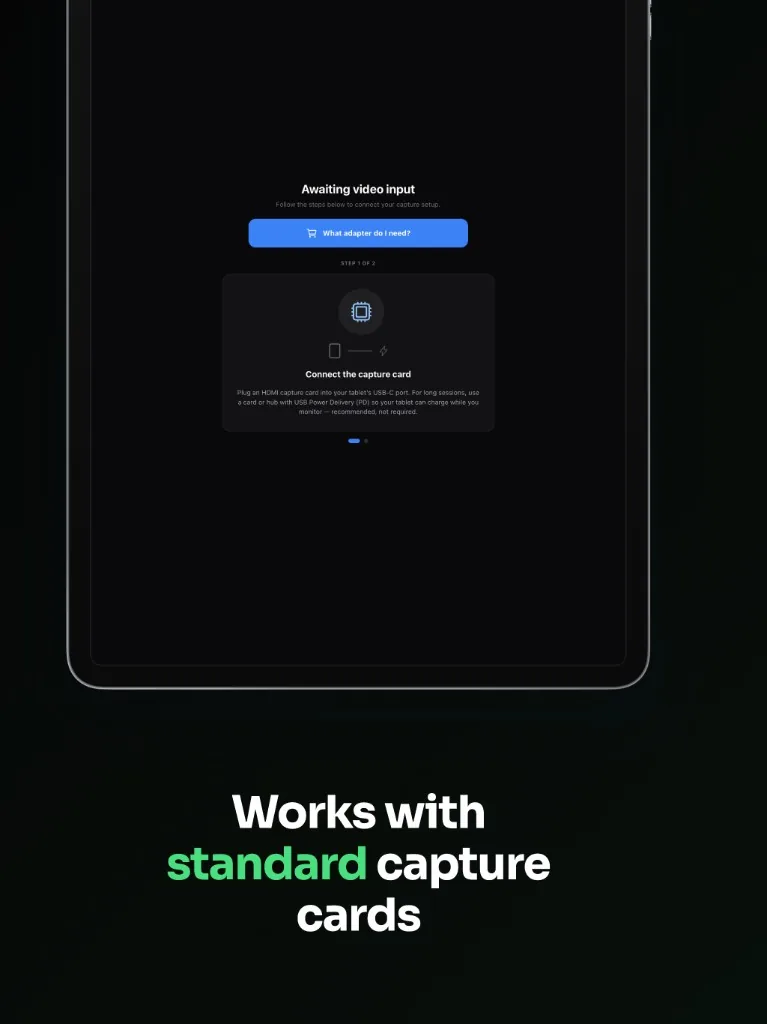
In-app guides show which adapter you need and how to wire HDMI with charging. Then pick a dongle below. The diagrams match what you see in Phosphor.
An iPad with USB-C running iPadOS 17 or later, an HDMI cable, and any standard UVC HDMI capture card. USB 3.0 models with Power Delivery pass-through are recommended. Sources with USB-C video out — Steam Deck, Nintendo Switch, and many MacBooks — can use a USB-C video-in card instead.
Hardware links may go to Amazon. Phosphor may earn a commission on qualifying purchases. We are not affiliated with listed brands. See Legal & disclosures.
Choose a USB-C capture dongle with integrated Power Delivery pass-through. HDMI (or USB-C video) goes in, one cable goes to the iPad, and your charger plugs into the dongle so the tablet stays powered while Phosphor shows the live feed.
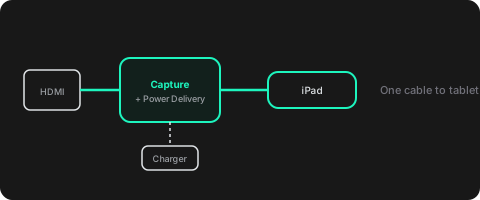
Low-latency gaming cards often omit Power Delivery. Pair any standard UVC capture dongle with a USB-C OTG data/power splitter: video on one path, charger on the other, so the iPad can stay plugged in during long sessions.
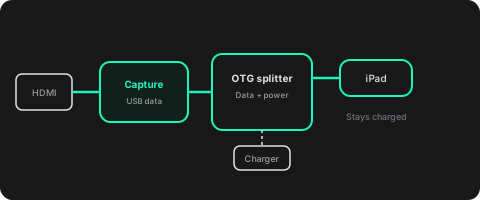
Phosphor talks to standard UVC capture devices. USB 3.0 cards built on chips such as the MacroSilicon MS2130 can deliver uncompressed YUY2 video — lower encode delay and cleaner text than many budget USB 2.0 dongles that only offer heavily compressed MJPEG.
HDMI in, USB-C to iPad, and power pass-through so you can charge while you use it, all in one compact setup.
For Steam Deck, Nintendo Switch, MacBook, and other sources that output video over USB-C — capture with USB-C video in and Power Delivery.
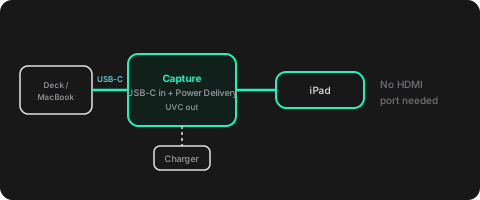
When response time matters, choose capture gear sold for low latency. Many of these omit Power Delivery — pair them with the USB-C OTG splitter so your iPad can charge.
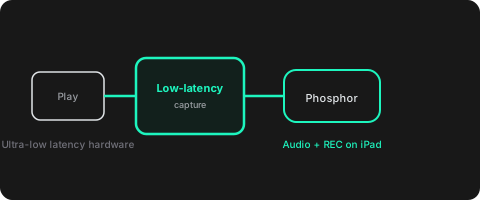
Phosphor is not affiliated with these brands. Listings and availability change. Verify compatibility with your iPad and HDMI source before purchase. Questions? support@getphosphor.dev.
$9.99 once
One-time Pro unlock, no subscription. Today’s monitor tools and touch controls, plus new Pro features as we ship them, included by default.
Example price in USD. Confirm the current Phosphor Pro price in the App Store before you buy; regional pricing may differ.
Download free to try live HDMI preview, aspect fit/stretch, pinch zoom, suggested resolutions, snapshots, and audio monitoring. Unlock Phosphor Pro once for wireless touch and trackpad control, automatic black-bar cropping, pan/rotate, custom resolution signal control, real-time picture tuning, and direct-to-disk 60fps recording. No subscriptions.
| Feature | Phosphor Free | Phosphor Pro (lifetime unlock) |
|---|---|---|
| HDMI live preview and audio | Included | Included |
| Phosphor Touch (Touchscreen and Trackpad control) Beta | Companion app download | Full multi-touch, click, drag and trackpad control |
| Viewport modes | Aspect fit, stretch, and pinch zoom | Smart Fill crop, freeform pan, and rotate |
| Hardware signal control | System default and suggested resolutions | Full custom resolution and aspect picker |
| Real-time picture tuning | Standard preview | Brightness, contrast, vibrancy, temperature, and sharpness |
| Direct-to-disk capture | Snapshots to Photos | Direct-to-disk 60fps recording |
| Pricing | Free | $9.99 one-time (no subscriptions) |
Phosphor is built for wired HDMI on iPad: second screen, consoles, cameras, live picture tools, and interactive touch controls. Free covers everyday monitoring; Pro unlocks the extras you need when framing, control, or capture matters, and keeps unlocking as we add more.
Restore Pro anytime from the upgrade screen in the app (same Apple ID).
Feature advantages over typical UVC preview tools, without naming other products.
| Feature | Standard UVC apps | Phosphor Pro ($9.99 lifetime) |
|---|---|---|
| Desktop touch & trackpad input | None (one-way video viewing only) | Phosphor Touch wireless touchscreen & trackpad stream |
| Black-bar & letterbox handling | Rigid stretch modes or permanent black borders | Intelligent edge-detection and auto-crop |
| Gameplay & desktop recording | Relies on OS screen recording (HUD clutter, frame drops) | Direct-to-disk video and audio hardware recording |
| Frame snapshots | Basic lossy screen grabs | Lossless source frame snapshots |
| Viewport control | Fixed aspect presets | Freeform pan, zoom, and 90°/180° rotation |
| Input signal control | System default auto-negotiation only | Custom resolution and aspect ratio selection |
| Monetization | Subscriptions or limited unlocks | $9.99 one-time lifetime unlock — no subscriptions |
Straight answers before you buy.
Phosphor Pro brings wireless multi-touch and precision trackpad controls to your Mac or Windows PC via our companion app, Phosphor Touch (currently in public beta). While HDMI sends pure, lag-free 60 fps video to your iPad, touch taps, gestures, and clicks stream over your local network in real time. Download the v0.1.1 companion app from our Phosphor Touch page.
An iPad with USB-C running iPadOS 17 or later, an HDMI cable, and any standard UVC HDMI capture card (USB 3.0 models with Power Delivery pass-through recommended). Steam Deck, Nintendo Switch, and many MacBooks can use a USB-C video-in capture card instead. See recommended hardware.
Wireless mirroring depends on local Wi‑Fi bandwidth, introducing compression artifacts, variable frame pacing, and dropped packets. A wired UVC connection provides a dedicated, consistent hardware video pipe — the reason Phosphor works as a Nintendo Switch screen, Steam Deck portable iPad display, or wired MacBook second monitor.
An iPad app that shows live HDMI video from a USB capture dongle. Connect HDMI source → capture card → USB-C iPad, then open Phosphor for a full-screen view with audio.
Yes. While Phosphor shows your HDMI feed, you can send the iPad screen to an Apple TV with AirPlay (Control Center → Screen Mirroring). Your wired HDMI setup stays the same; AirPlay quality depends on your network and Apple TV.
Yes. Send HDMI or USB-C video from your MacBook or PC into a UVC capture card and Phosphor becomes a wired second monitor. Set up the display on your computer; Phosphor handles the iPad side. Pair it with Phosphor Touch for interactive touchscreen and trackpad capability.
Yes, and you should for longer use, since Phosphor keeps the screen on. The simplest option is a capture dongle with USB-C power pass-through: HDMI from your source, one cable to the iPad for video, and your charger plugged into the dongle so the tablet stays charged. Many low-latency gaming cards omit Power Delivery — pair those with the USB-C OTG splitter listed under Gaming hardware. See recommended hardware.
Yes. Aspect Fit (free) keeps 4:3 games in their natural shape with black bars on the sides. Use Stretch Fit to fill the screen, or pinch / Zoom Adjust for a closer look. Phosphor Pro adds crop black bars, pan, and rotate when you need finer framing.
Yes. HDMI audio plays on your iPad with mute controls. Snapshots to Photos are free. Phosphor Pro adds MP4 recording from the same capture feed. No separate PC capture app needed for the clip.
Phosphor does one job well: full-screen wired HDMI through a USB capture dongle with powerful picture and touch tools. Free includes Aspect Fit, Stretch Fit, zoom, HDMI audio, and snapshots. Phosphor Pro unlocks wireless touch & trackpad input via Phosphor Touch, auto-crop, pan, rotate, image post-processing, the output resolution picker, and HDMI stream recording in one $9.99 lifetime unlock. New Pro features are included by default as we ship them; no subscription and no pay-per-update.
A USB-C iPad running iPadOS 17 or later. Phosphor is iPad-only; there is no iPhone or Android version. See support for troubleshooting.
Not at this time. Apple currently supports external capture card adapters on iPadOS only, so we cannot build an iPhone version unless Apple adds that capability. We would love to bring Phosphor to iPhone if it becomes possible.