 Phosphor
I have always loved tablets. My first one was the Google Nexus 7 back in college. While people often tell me that is what a phone is for, a phone is a multitool that does everything fine, but a tablet is built to consume media. It is like carrying around a miniature TV. Fast-forward to today, and my daily bag carries my 12.9" iPad Pro and my Pixel Fold.
About three years ago, I started a role that required frequent work travel. As a developer (currently a Lead Frontend Engineer at Honda), I need multiple displays to function. Sitting in a hotel room with just a laptop charger and an empty desk crushed my workflow.
Sitting in a hotel room with just a laptop charger and an empty desk crushed my workflow.
I started carrying a dedicated 15-inch portable monitor on every trip. Packing that heavy external screen while my 12.9" iPad sat in the same bag started to feel ridiculous.
I tried existing tools to turn the iPad into that second display:
- Duet Display worked, but ongoing subscription fees for a hardware display utility felt wrong.
- Luna Display offered a one-time purchase, but in practice I dealt with input lag, dropped connections, and unreliable wired detection over the cable.
- Orion showed up when iPadOS 17 added external camera support. I bought their recommended HDMI capture dongle immediately. It proved a direct cable connection was viable, but the execution fell short. It left permanent black bars around the feed, lacked native video recording, and hasn’t seen meaningful feature updates in years.
I needed full screen real estate so I could actually read VS Code. I also wanted an app where I could plug in a Steam Deck on a plane, connect my modded N64, or capture clean gameplay footage of PS2 games running through my Morph4K upscaler without using the built-in iOS screen recorder.
A few weeks ago, I realized I have been making mobile apps for over a decade. Before Honda, I built streaming video apps for security towers at LVT, worked at various startups, and moved from web to mobile development early on. Working directly with hardware to turn lines of code into a functional tool feels like magic.
So I sat down and built Phosphor: a wired UVC tablet monitor built with Expo SDK 57, React Native 0.86, VisionCamera v5, and React Native Skia.
Here are the technical decisions, architecture, and bugs I had to work through to make it real.
01 Why React Native in 2026
When engineers see video streaming, frame worklets, audio passthrough, and custom shaders, the default reaction is usually: why not write this in pure Swift and Metal?
The honest answer is that React Native is where my deepest production experience lies. Over the course of my career, I have worked across five companies, shipping five cross-platform iOS and Android apps, an iOS-only product, and plenty of internal side projects. Phosphor is actually the first personal project of mine to cross the finish line all the way into App Store review, and I knew that muscle memory would give me the fastest iteration speed. Beyond that, cross-platform reach is essential. While Phosphor launched on iPadOS first, bringing a first-class Android tablet version to market is high on my priority list.
I am a React Native veteran. I lived through the early, clunky years when the framework was deservedly called slow and criticized for not feeling native. But I have also been here for the entire evolution. With the New Architecture fully adopted, that reputation is outdated.
In 2026, running React Native 0.86 on the New Architecture with Expo
SDK 57 gives you direct C++ bindings through Nitro Modules and
Fabric native rendering. By combining modern primitives with
react-native-vision-camera v5 and
@shopify/react-native-skia, the app delivers smooth
120Hz display refresh rates on ProMotion iPad screens while the
JavaScript thread consistently keeps pace at 120Hz. If throughput or
latency were ever valid reasons to avoid React Native for hardware
tooling, that simply is not the case anymore.
02 Why VisionCamera v5: Bypassing Legacy Bridge Bottlenecks
Picking a camera library for an app that demands 60 fps at 1080p or 4K with near-zero latency narrows your choices fast.
Library shortlist
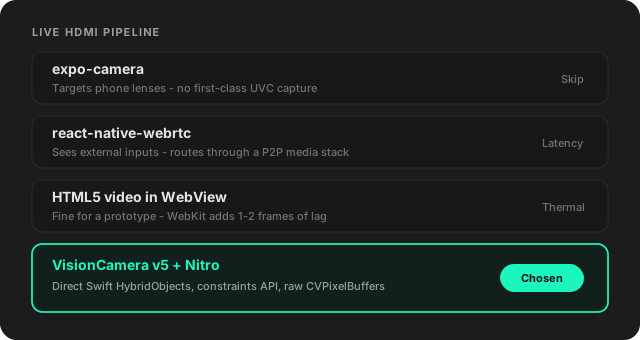
Off-the-shelf wrappers like expo-camera target phone
lenses and lack first-class support for external UVC capture
pipelines. WebRTC (react-native-webrtc) can detect
external inputs, but it routes video through an entire media-stream
stack designed for peer-to-peer networking, adding unnecessary
complexity and frame latency when all you want is a direct pipe from
the hardware. Running an HTML5 video tag inside a local
react-native-webview works for a prototype, but the
WebKit compositor adds 1 to 2 frames of input lag and struggles with
sustained thermal loads.
I chose
react-native-vision-camera
v5, which was a massive architectural shift from v4.
Nitro Modules rewrite
VisionCamera v5 threw out thousands of lines of handwritten JSI and C++ glue in favor of Nitro Modules. Instead of serializing whole objects across the bridge, Nitro binds native Swift objects directly to JS as C++ HybridObjects with lazy property access. Property lookups are roughly 15 times faster than standard TurboModules and 60 times faster than old Expo modules.
Separated outputs and the Constraints API
Older versions forced you to guess valid hardware configurations
from a stitched-together list of camera formats. In v5, photo,
video, and frame processing are decoupled into independent output
objects. You specify exact constraints (like requiring 60 fps or
specific pixel dimensions), and the engine negotiates the underlying
AVCaptureSession cleanly.
True native memory pipelines
In v5, frame processors run on typed Nitro runtimes, and photos stay
in memory rather than forcing immediate, slow writes to temporary
disk files. This gave me direct access to raw
CVPixelBuffers on iOS for GPU work without dropping
frames.
03 The Video Pipeline: Mistakes Were Made
Getting video from the capture card onto the screen was supposed to be the straightforward part. Instead, it became a parade of bizarre crashes, green flashes, and orientation traps that almost broke the project.
The green flash of death
Early on, the stream would run fine for thirty seconds, flash neon green every few moments, and then die completely.
Because VisionCamera v5 uses Nitro HybridObjects, accessing native properties like device formats makes direct C++ calls rather than serializing data across a bridge. The mistake was how I handled device enumeration and constraints in React.
I had a polling hook checking for connected capture dongles. Even when the hardware ID had not changed, the poll created a new factory instance and updated state with a new device object reference. On top of that, constraints were declared inline:
// New object reference on every render
<Camera
  device={device}
  targetResolution={{
    width: 1920,
    height: 1080
  }}
/>const TARGET_1080P = Object.freeze({
width: 1920,
height: 1080
});
// Only update if the physical ID changed
if (lastDeviceId.current !== freshDevice.id) {
lastDeviceId.current = freshDevice.id;
setDevice(freshDevice);
}
In the New Architecture, passing fresh object references into native
props triggers native session.configure() calls. Doing
that repeatedly to an active AVCaptureSession while a
physical UVC capture card is pumping uncompressed frames causes
immediate buffer starvation. The hardware drops frames, flashes neon
green, and locks up.
Unstable props starve the capture session
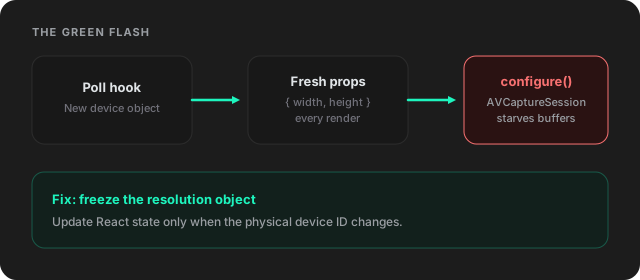
The fix was module-level stable references and strict ID checks. Freeze the resolution object. Only update React state if the physical device ID actually changed.
The Camera key blunder
At one point, while trying to force clean reconnects when switching
resolutions, I put a dynamic key on the
<Camera> component:
<Camera key={sessionKey} ... />
Because sessionKey tracked output resolution settles,
the key would update half a second after stream negotiation,
completely unmounting and remounting the native layer. The screen
would flash black mid-stream.
Never unmount or remount
<Camera> mid-stream.
Session recycling belongs strictly to when the cable is unplugged.
Orientation was a disaster
HDMI signals are landscape-only. When you plug a capture card into an iPad, iPadOS reports the feed as upright in landscape-right only. Flip the tablet 180 degrees, and the feed is upside down. Turn it to portrait, and it is rotated 90 degrees.
My initial instinct was to unmount and remount the camera session
whenever the device rotated, or apply React Native rotations (rotate: '180deg') to the view container.
- Remounting the camera session on tablet rotation caused hard crashes after three or four quick turns.
-
Applying CSS-style 180-degree rotations in React Native caused
AVCaptureVideoPreviewLayerto completely blank out. - Rotating the native layer by +90 degrees and scaling it in React Native resulted in a distorted, cropped vertical strip.
Keep the session mounted
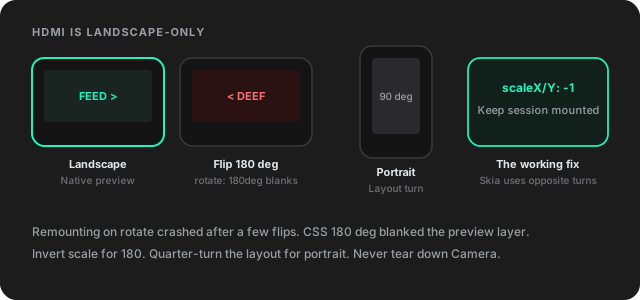
The working solution was to leave the camera mounted continuously.
When flipping 180 degrees, we invert scale (scaleX: -1,
scaleY: -1) instead of applying a 180-degree rotation.
For portrait modes, we apply layout quarter-turns without
unmounting. Even stranger: raw camera frame textures fed into Skia
require the exact opposite quarter-turns compared to the native
preview layer, meaning the orientation math had to branch depending
on whether the post-processing shader was active.
04 Audio: Solving the Silent HDMI Passthrough
Routing HDMI audio through the iPad should be simple: read the digital stream from the USB-C capture dongle and output it through the iPad speakers.
Instead, native logs showed AVAudioEngine running,
input set to USB Audio, and output set to Speaker, yet the iPad
produced zero sound.
The conflict: MovieFileOutput vs. AudioSession ownership
To force the camera session into a 16:9 aspect ratio instead of the
iPad’s native 4:3 camera raster, I had attached an
AVCaptureMovieFileOutput (useVideoOutput).
Apple’s AVCaptureSession claims total system audio
control if a video recording output is active on the session.
For real-time monitoring, incoming audio must run through a custom
Swift module (phosphor-audio-monitor) using an
AVAudioEngine graph (inputNode → mainMixerNode).
Both engines fought for AVAudioSession ownership.
Attempting to swizzle
automaticallyConfiguresApplicationAudioSession = false
broke the capture card connection entirely.
Two engines, one audio session
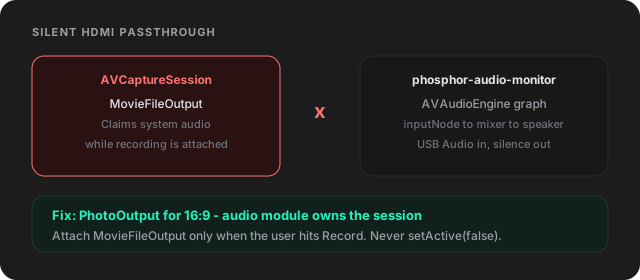
The fix
-
Live audio monitoring is owned exclusively by our Swift module’s
AVAudioEngine. -
Aspect ratio bias is handled using PhotoOutput
(
targetResolution), keeping the movie recording output detached until the user records. -
We never call
AVAudioSession.setActive(false)when audio stops. Stopping the shared audio session while anAVCaptureSessionis active kills the video preview instantly.
05 Graphics at 60 FPS: Why React Native Skia Saved the Project
When working in the React Native ecosystem,
@shopify/react-native-skia
is my absolute Swiss Army knife. Whenever I need to build
graphically intense interfaces or render high-throughput frame
pipelines without dropping a single frame, Skia is always my first
choice. In Phosphor, it saved the entire visual pipeline.
The power of Skia for video post-processing
Building a real-time monitor means dealing with image calibration (brightness, contrast, vibrance, temperature) and edge sharpening without introducing perceptible input lag. Doing image manipulation on CPU buffers in React Native is out of the question, and writing custom Metal and Vulkan shaders from scratch across platforms creates massive maintenance debt.
Skia solved this directly on the GPU:
- Hardware-accelerated ColorMatrix. Skia lets us compile standard color matrix math straight to Metal on iOS. Adjusting saturation, gamma curves, and color temperature runs entirely in a single GPU pass with sub-millisecond execution times.
- SkSL runtime shaders. To counteract soft downscaled feeds from capture dongles, I implemented an Unsharp Mask (USM) edge-sharpening pass written in Skia Shading Language (SkSL). SkSL compiles directly into native GPU bytecode, evaluating a 3×3 Gaussian luma sample and boosting edge contrast on the fly without adding frame delay.
Balancing Skia with desktop text clarity
Even with Skia’s efficiency, text legibility required careful pipeline separation.
When outputting a desktop computer to the iPad for programming or reading terminals, typography depends on subpixel anti-aliasing. If you run text through an active shader canvas, even an “identity” pass with no effects runs through bilinear texture resampling. Combined with the YUV 4:2:0 or 4:2:2 chroma subsampling used by USB capture cards, thin syntax-highlighted code and small fonts soften and blur.
To solve this, I designed a hybrid rendering model:
-
Desktop Identity Mode. If all picture calibration
sliders sit at zero and sharpening is off, Skia is bypassed
completely. The feed renders straight to the native hardware
AVCaptureVideoPreviewLayer(<Camera pixelFormat="native" resizeMode="contain"/>). Text retains 1:1 hardware subpixel sharpness. -
Skia Overlay Mode. Direct mounting of
SkiaCameraon external UVC feeds crashes on stream start. Instead, the native<Camera>remains mounted underneath. The moment a user adjusts a picture slider or turns on Image Detail, an offscreen frame worklet attaches, binds the frame to Skia, and displays an absolute-fill Skia Canvas directly over the preview.
Hybrid rendering
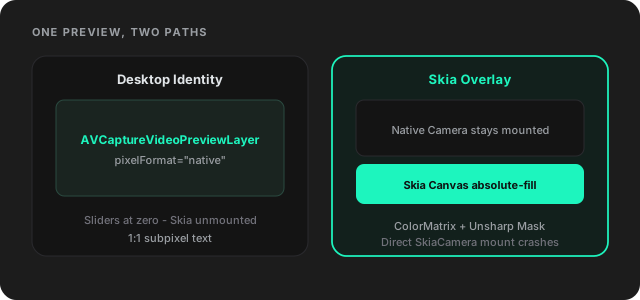
Resetting the sliders tears down the worklet and unmounts the canvas, dropping the display straight back into the unadulterated native preview layer.
06 The 1.5 GB Memory Leak: Worklet Backpressure
Once picture grading and sharpening were functional in Skia, moving a slider caused app memory to climb from ~350 MB to over 1.5 GB within seconds, triggering an out-of-memory crash.
The cause: unbounded worklet allocations
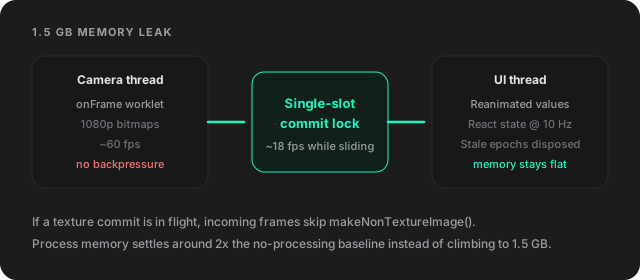
VisionCamera’s onFrame worklet runs on a dedicated
high-priority camera thread.
The worklet called makeNonTextureImage() to turn raw
frames into Skia CPU bitmaps, then passed them to the UI thread via
scheduleOnRN().
Fast slider drags triggered continuous React re-renders, causing the JS thread to lag. While the UI thread was caught in re-renders, the camera thread kept allocating full-resolution 1080p bitmaps into RAM without backpressure.
A single-slot commit lock
The fix
I added a single-slot commit lock and texture epoch tracking:
-
If a texture commit is currently in flight to the UI thread,
incoming camera frames skip
makeNonTextureImage(). - Texture commits are capped at ~18 fps while sliders are active.
- Sliders update Reanimated SharedValues directly on the UI thread, while the React state update is throttled to 10 Hz.
- Any texture delivery whose generation epoch does not match the active viewport state is disposed of synchronously on arrival.
Process memory stabilized at around double the memory usage with no post-processing, but remains stable regardless of slider movement.
07 Viewport Inversion: Auto-Cropping Black Bars
A major issue with existing apps is how they handle 4:3 retro signals or laptop outputs. When a console or scaler boxes an image inside black borders, the iPad ends up with black bars on every side.
Phosphor runs a lightweight luma-threshold scan on the GPU across edge fractions. Once dead pixel margins are found, the viewport crops and scales the active area to fill the screen.
The transform desync issue
Combining pinch-to-zoom, two-axis panning, and automatic letterbox cropping caused drift between the native camera layer and the Skia overlay:
-
The native
<Camera>centered its transforms in the view. - Skia scaled via an internal 4×4 Group matrix using top-left origin coordinates.
- Zooming into a stream and then turning on a color filter snapped the image to the top-left corner.
One transform owner
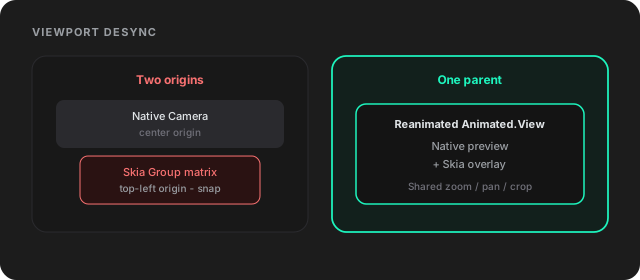
The rule: one transform owner. All matrix scaling
was removed from the Skia canvas, moving viewport transforms into a
single parent React Native Animated.View run by
Reanimated. Both the native preview layer and the Skia overlay share that
container, keeping pixels aligned across all zoom levels and view
modes.
Next What is next
Phosphor is live on the App Store as an iPad-only utility with a free core preview and a single $9.99 lifetime Pro unlock.
Next on the roadmap:
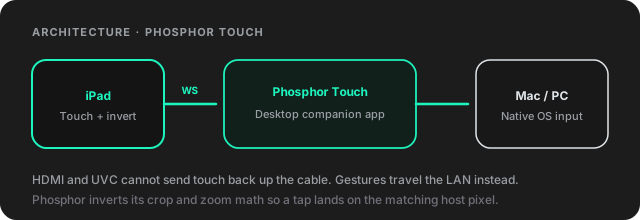
Interactive Touch Controls (Phosphor Touch). Because HDMI and UVC are strictly one-way video pipelines, touch cannot travel back over the capture cable alone. We built Phosphor Touch, a lightweight desktop companion app for Mac and PC. By streaming touch gestures from the tablet over the local network via WebSockets, Phosphor inverts its viewport scaling and crop math to control the host computer mouse and trackpad directly from the iPad screen.
Touch over the LAN, not the cable
Building a hardware-level utility with React Native’s New Architecture meant rethinking normal app development habits. But combining VisionCamera v5’s low-level Nitro foundations with React Native Skia’s GPU rendering power made it possible to build an app that runs as fast and predictably as pure native code.
Try Phosphor
Free live HDMI preview on a USB-C iPad. One $9.99 lifetime Pro unlock for crop, picture tools, and recording. No subscription.